> ## Documentation Index
> Fetch the complete documentation index at: https://docs.boringdatabase.com/llms.txt
> Use this file to discover all available pages before exploring further.
# First Deployment
> How to deploy your app to production
In this section we will cover how to deploy your app for the first time to fly.io
## Prerequisites
* A Fly.io account
* Flyctl CLI installed and authenticated on your local machine
## Steps
### 1. Launch Fly app
Ensure you have the fly cli installed and are authenticated.
1. Run this command in your terminal in the root directory of the boringdatabase app
```bash theme={null}
fly launch
```
2. Follow the console steps.
3. Fly will build and deploy your app to a fly subdomain
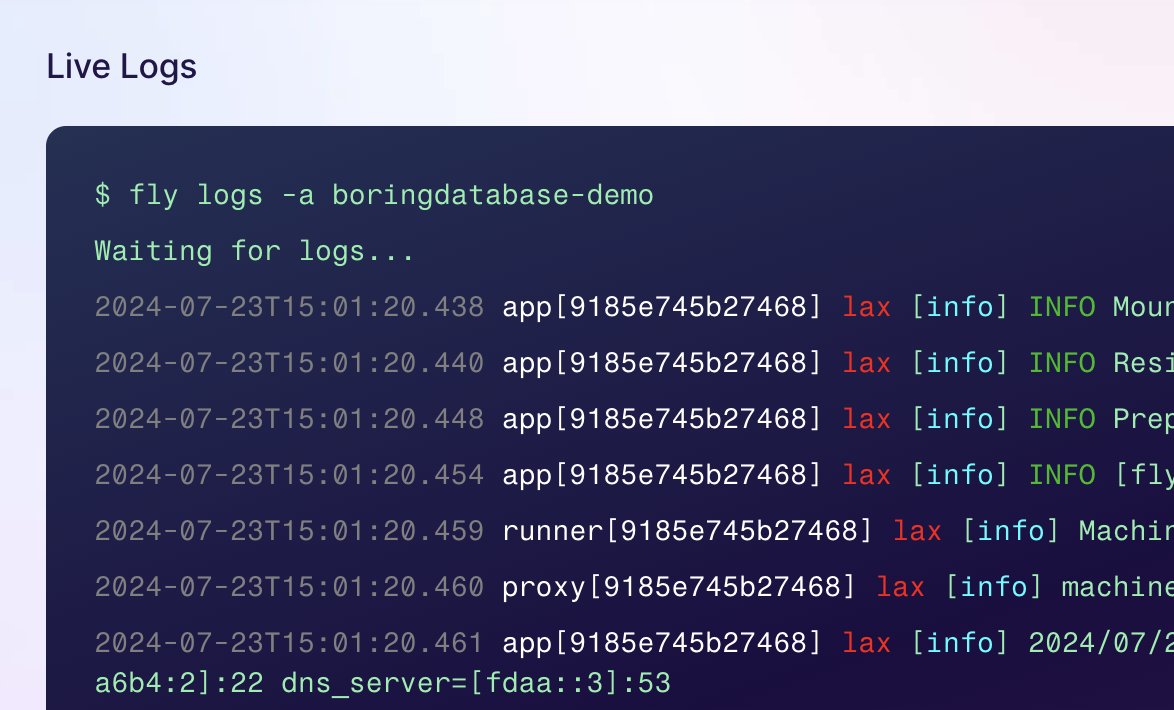
4. View the live logs in the fly dashboard - the deployment will fail at this point don't panic!
 ### 2. Setting Production Environment variables
Now you have a fly machine you can set the production environment variables to get your app working.
1. Login to the fly dashboard
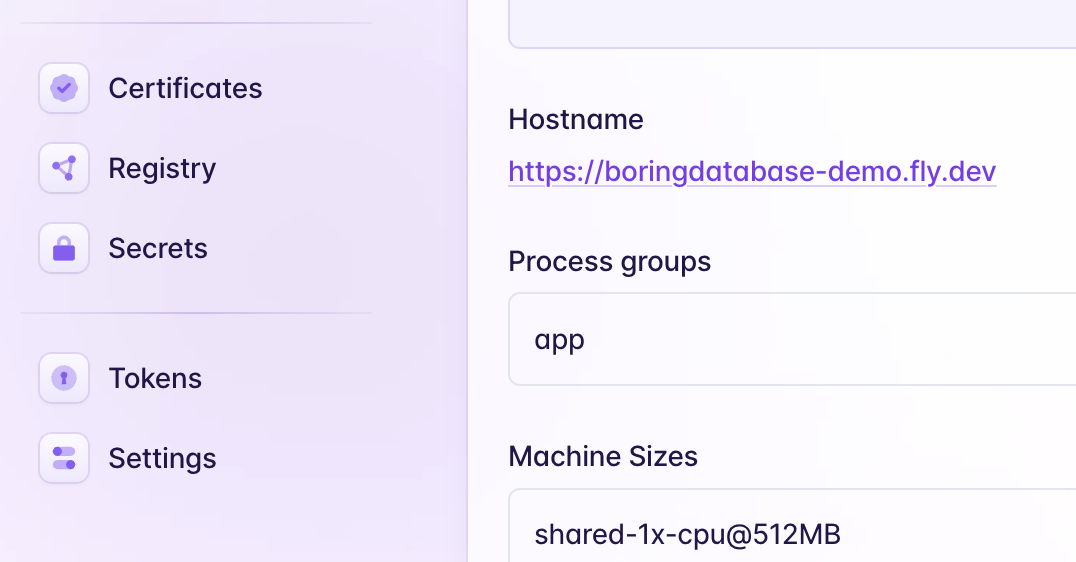
2. Find your new app and navigate to secrets.
### 2. Setting Production Environment variables
Now you have a fly machine you can set the production environment variables to get your app working.
1. Login to the fly dashboard
2. Find your new app and navigate to secrets.
 3. Set all the production environment variables
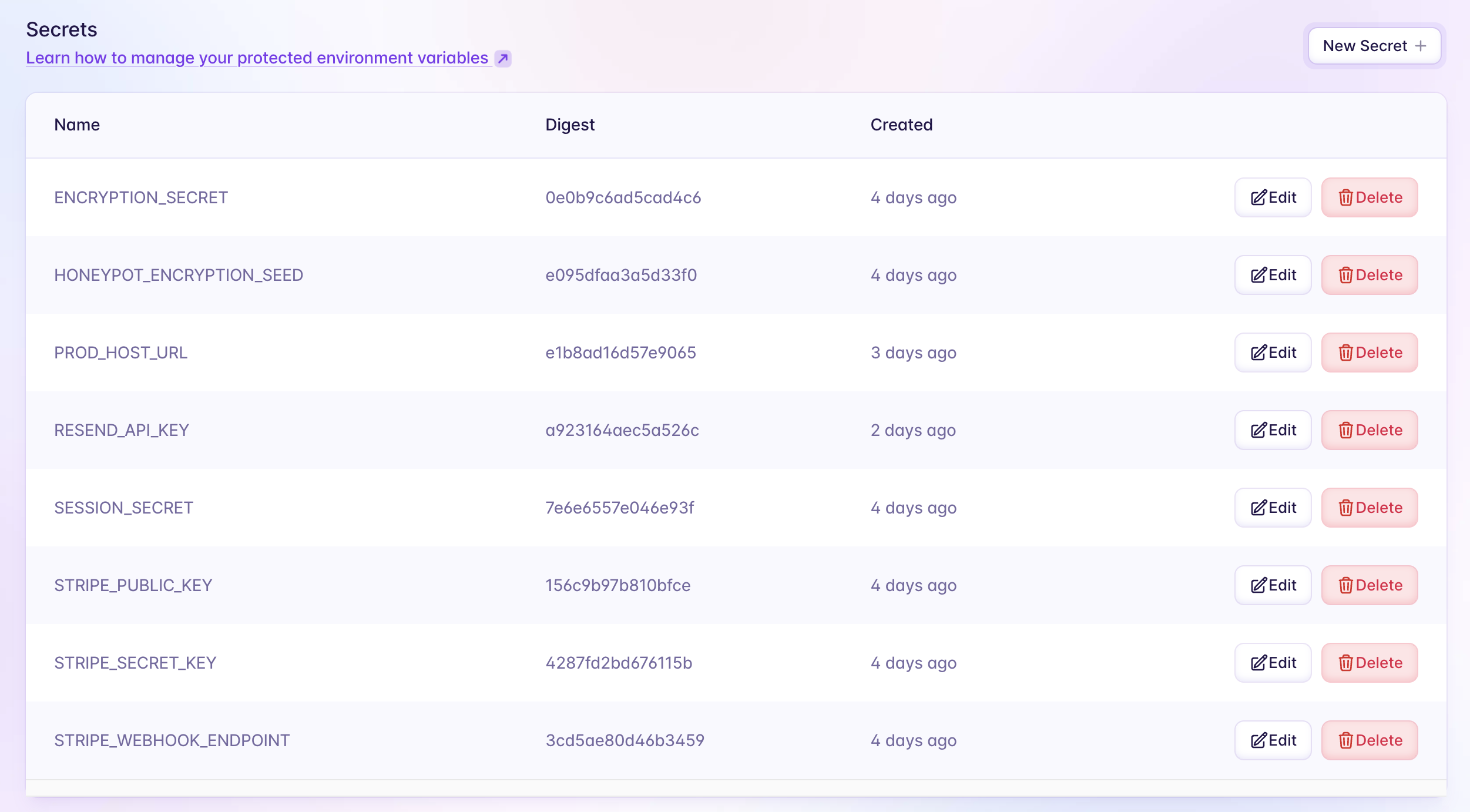 You could choose to use the `TEST` environment variables for Stripe and update them to production at a later point.
### 3. Redeploy your app
1. Back in your repository terminal run:
```bash theme={null}
fly deploy
```
This will rebuild the app and apply the new environment variables.
2. Check the live logs again.
You shouldn't see any errors if everything has been set correctly.
You will see the logs for the `seed.ts` file working here too!
You could choose to use the `TEST` environment variables for Stripe and update them to production at a later point.
### 3. Redeploy your app
1. Back in your repository terminal run:
```bash theme={null}
fly deploy
```
This will rebuild the app and apply the new environment variables.
2. Check the live logs again.
You shouldn't see any errors if everything has been set correctly.
You will see the logs for the `seed.ts` file working here too!